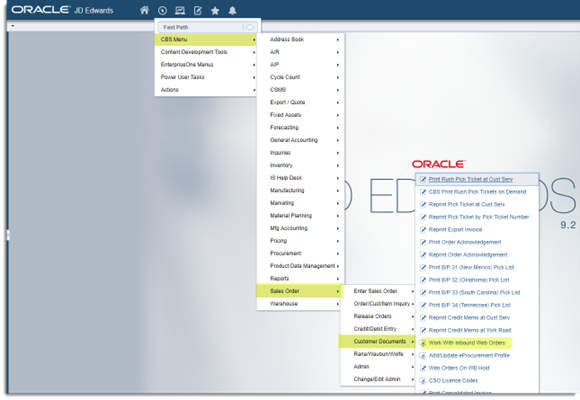
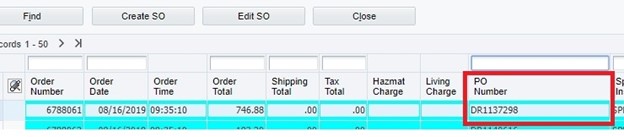
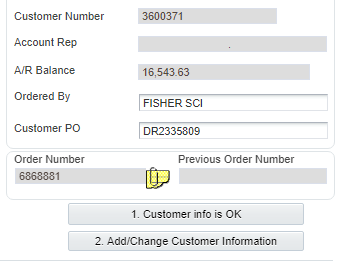
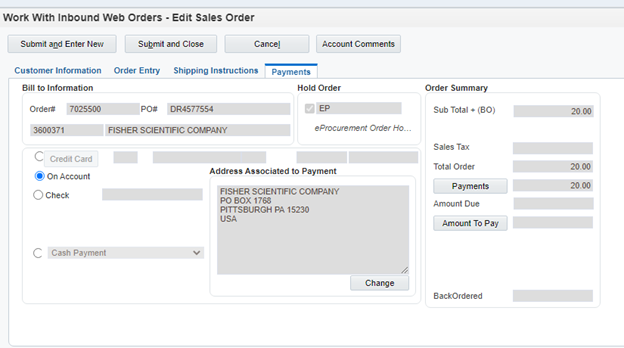
You will notice that one of the fields has the purchase order number. Most of Fisher’s PO numbers start with DR (there is one particular item that is stock that will come in as PR).
You will need the Purchase Order number to look up the order in Suppliers Solutions.
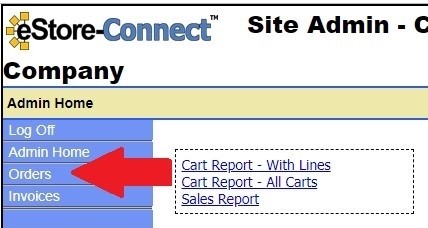
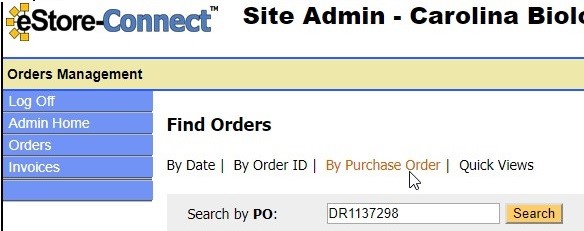
In Suppliers Solutions, after you log in, click on the Orders Link on the left hand side.
On the Find Orders screen click- By Purchase Order
Paste or type the PO number in and click search
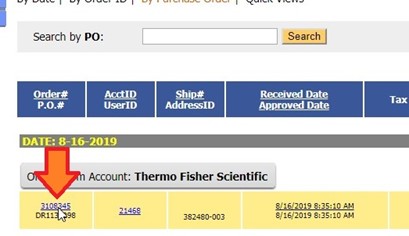
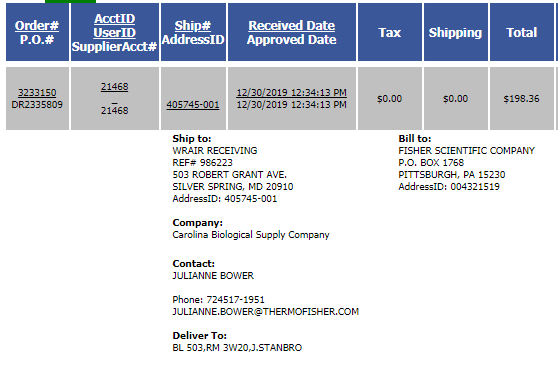
when the order appears, click on the number that is (highlighted in blue) right above the purchase order number to access the order:
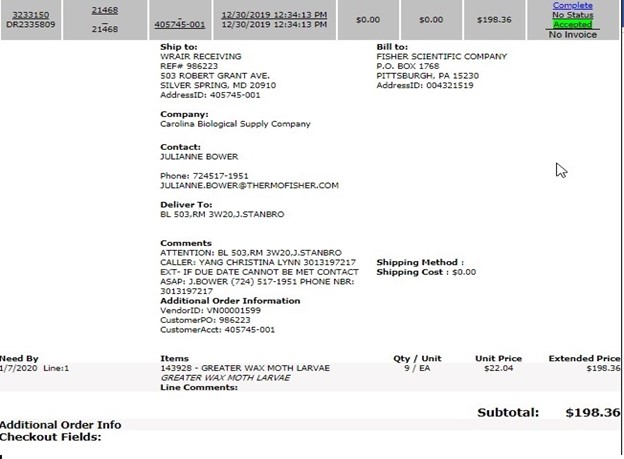
When you click that blue hyperlink, it will display the order information and you can verify with the school Name and Ship to.
Fisher orders use an override address option so if you have one in Funnel stuck screen:
Click Create SO and edit that order in JDE
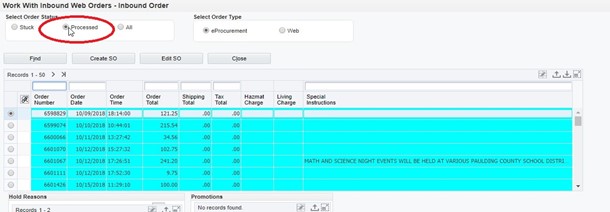
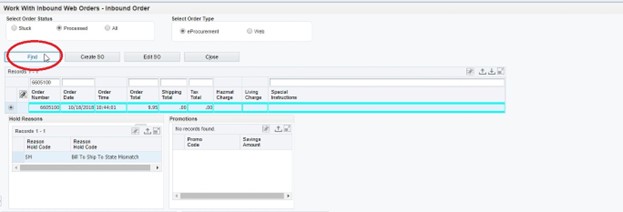
Click on the Processed Radio Button
Enter your order number in the Order Number field and click on the Find button
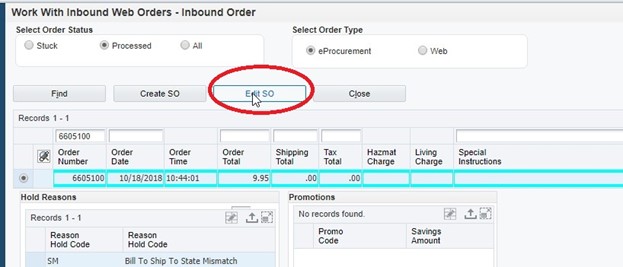
Next, click Edit SO
Purchase order number in JDE should be the same as in Suppliers Solution
Most of the time Fisher orders are for living items. Please follow these guidelines when entering dates for living items.
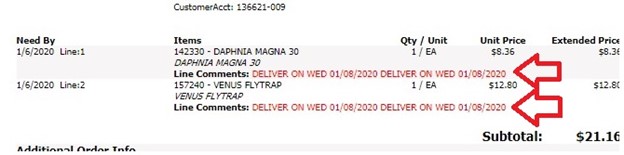
If there are line comments in red you MUST use these dates within suppliers! DO NOT use the Need by date. See example below:
Fisher can order preserved materials in formalin ONLY.
NO Perfect Solution
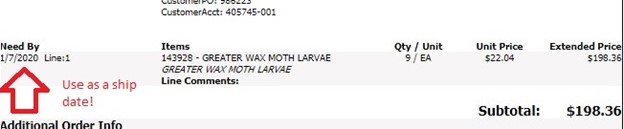
If there is nothing in line comments and the need by date will default to a system generated date.
Please add a header in Text Box 2 explaining that a valid delivery date was not referenced.
Leave the order EP hold.
Shipping should default to REA. The customer account number does not need to be added in the header.
Please enter email address fse.bids@thermofisher.com
Verify that all your information is correct
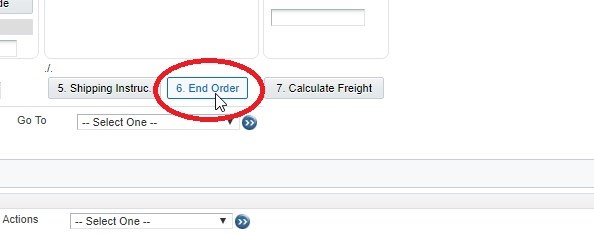
Click End Order
You should not need to hit amount to pay—this is automatically done (if see any pending amount click the amount to pay). Click on Submit and Close.
The order will go on EP, SM and/or HC hold and release it from hold. (unless waiting on a delivery date for living item(s))
As of 05/27/2025 we no longer need to do the POC in Supplier Solutions for these orders. They are on auto post which means that JDE will send the confirmation data to Supplier Solutions automatically. Once order is released from its last hold code in JDE, the data will be sent instantly.
If you get a Fisher order for Puerto Rico or Canada, push it through and then cancel it. Email Julianne Bower at Fisher (julianne.bower@thermofisher.com) a screenshot of the order in Supplier Solutions and explain the order has been cancelled on our end and will need to be submitted with a new PO number to our International Sales department for processing.
If you have any questions, please reach out Duwana Rillo, Tyrah Chisholm, Tina Mansfield or Quality Team.